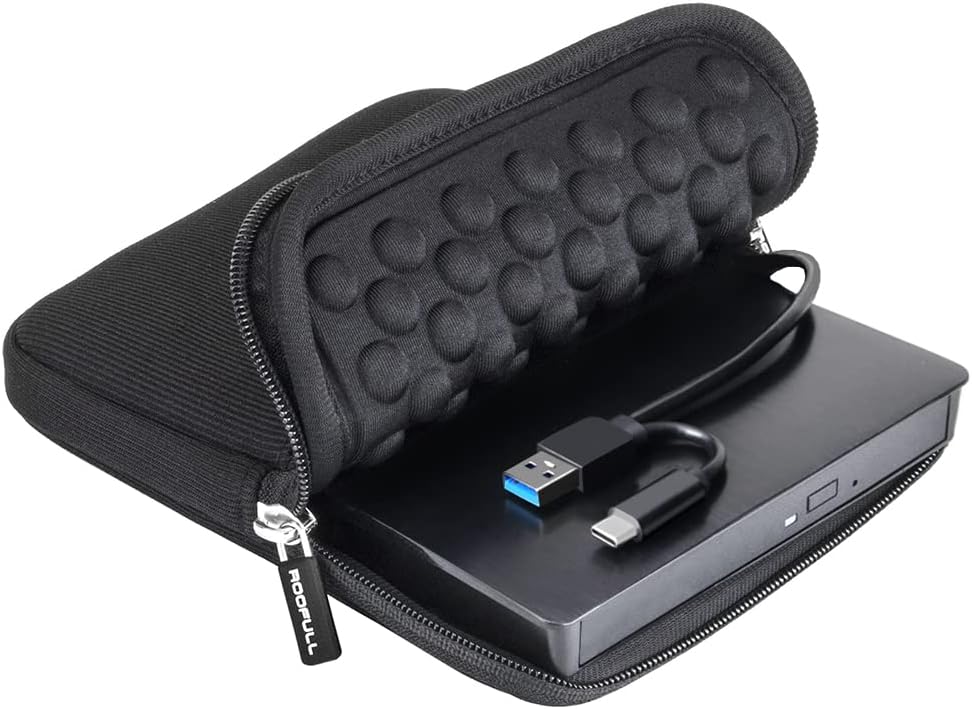
Description:
What's in the box
Details:
| Special Feature | Come with Protective Carrying Case, Compact & Portable, Plug & Play, Support Reading & Burning & Ripping, USB 3.0 & USB-C 2 Kinds of Connectors |
|---|---|
| Hardware Interface | USB 3.0 Type A, USB 3.0 Type C |
| Brand | ROOFULL |
| Optical Storage Write Speed | Max 24xCD / 8xDVD |
| Optical Storage Read Speed | Max 24xCD / 8xDVD |
Visit the ROOFULL Store
ROOFULL External CD DVD Drive for Laptop & Mac with Case, USB 3.0 Type-C
BHD1843
Quantity:
Order today to get by 7-14 business days
Delivery fee of BHD 2. Free for orders above BHD 20.
 Imported From: United States
At BOLO, we work hard to ensure the products you receive are new, genuine, and sourced from reputable suppliers.
Every product in the BOLO catalogue is sourced through our Verified Global Supply Network of verified sellers, authorized distributors or directly from the manufacturer.
Each product undergoes thorough inspection and verification at our consolidation and fulfilment centers to ensure it meets our strict authenticity and quality standards before being shipped and delivered to you.
If you ever have concerns regarding the authenticity of a product purchased from us, please contact Bolo Support. We will review your inquiry promptly and, if necessary, provide documentation verifying authenticity or offer a suitable resolution.
Your trust is our top priority, and we are committed to maintaining transparency and integrity in every transaction.
While we strive to display accurate information, variations in packaging, labeling, instructions, or formulation may occasionally occur due to regional differences or supplier updates. For detailed or manufacturer-specific information, please contact the brand directly or reach out to BOLO Support for assistance.
Unless otherwise stated, all prices displayed on the product page include applicable taxes and import duties.
BOLO operates in accordance with the laws and regulations of Bahrain. Any items found to be restricted or prohibited for sale within the Bahrain will be cancelled prior to shipment. We take proactive measures to ensure that only products permitted for sale in Bahrain are listed on our website.
All items are shipped by air, and any products classified as “Dangerous Goods (DG)” under IATA regulations will be removed from the order and cancelled.
All orders are processed manually, and we make every effort to process them promptly once confirmed. Products cancelled due to the above reasons will be permanently removed from listings across the website.

ROOFULL BCD829-Y USB 3.0 & USB-C External CD/DVD Drive for Windows and Mac Laptop PC
As laptops become thinner and lighter, internal CD and DVD drives are becoming a rarity. However, many people still treasure their collections of CDs and DVDs from the 90s. The ROOFULL BCD829-Y external CD/DVD drive is an essential tool for anyone who wants to revisit their old music albums and enjoy a DVD movie collection.
In addition, this is not just a simple CD/DVD player for playing music CDs, and movie DVDs, it's also a burner writer rewriter ripper recorder. You can use it to burn your music CDs, digitize your old music CDs, convert them to MP3, copy audio files to your computer, create custom mixtapes or back up your photos and videos, install software or games from a disk, or have a reliable solution for data transfer and system backups. It’s easy with the ROOFULL BCD829-Y. The drive supports a variety of disc formats, including CD-R/RW, DVD±R/RW, DVD-RAM, VCD, and SVCD, making it a valuable tool for various multimedia tasks.
Whether you're using a Windows (11, 10, 8, 7, Vista, XP) laptop or desktop, a Linux computer, or an Apple MacBook/iMac, the ROOFULL BCD829-Y has you covered. To get started, simply plug the USB-A or USB-C connector into your computer's USB port, insert your CDs or DVDs, and your laptop or PC will recognize the drive (For Windows, you can see the DVD RW drive icon in Windows Explorer/ For Mac, you can see the icon on the desktop). From there, you can use media player software (such as Windows Media Player, Apple Music, iTunes, or VideoLAN VLC player), burning software, or ripping software to read or write your discs. Scroll down to view supported disc types, detailed usage steps, and recommended software.
Equipped with USB 3.0 technology, this drive offers data transmission speeds of up to 5Gbps, ensuring smooth playback of movies and music without any annoying lags. The ROOFULL BCD829-Y features an 8x read/write speed for DVDs and 24x for CDs, making the process of burning and ripping discs quick and efficient.
The external CD/DVD player also includes a separate power supply cord for situations where your laptop or desktop's USB ports cannot supply enough power through a single data cable. By connecting the power supply cord to a 5V power bank or adapter, you can ensure that the optical drive has enough power to operate reliably.
If you’re frequently on the move, you’ll appreciate the portability of this drive. Slim and lightweight, it easily fits into your bag, and the included protective storage carrying case safeguards your optical drive from accidental drops and damage. Whether you’re a teacher showing educational videos, a business professional backing up files, or a student accessing software for your studies, this drive is the perfect travel companion. Its compact design ensures that you can carry it with you wherever you go without any hassle. The USB 3.0 & USB-C data cable embedded in the back of the optical drive allows for easy use and storage anytime, anywhere, without worrying about losing or damaging the data cable.
Please note that this DVD CD drive is not compatible with Chrome OS (Chromebook), TVs, cars, trucks, projectors, tablets, iPads, phones, PS4/5, Xbox, Nintendo Switch, and cannot play Blu-ray discs.

USB 3.0 & USB-C Data Cable
The data cable embedded under the drive has USB 3.0 & USB-C two kinds of connectors on the end, making it easier to connect different laptop or desktop computers without an adapter required and no worries about losing the data cable.
Plug this data cable into your computer, it will install automatically, insert your disc, it will show the device icon.
* Due to the limitation of the design, the data cable length is only about 25 cm/ 9.8 inches.

Plug and Play
Simply plug the data cable into your computer directly or self-powered USB hub, and the drive will be recognized (on Mac, a disc icon appears on the desktop once a disc is inserted). Then you can use your preferred software to read, burn, or rip discs easily, just like using an internal optical drive.
* Note: Software is required for reading, writing, or copying discs.

Powerful Performance
As a professional manufacturer with 10 years of experience dedicated to producing reliable-quality external CD/DVD drives. Each ROOFULL USB CD/DVD drive is equipped with a 100% loader with high speed, strong error correction, anti-shock, noise reduction, and low power consumption, bringing you a faster and smoother experience.
* Please keep your CD/DVD drive flat and ensure that your disc is securely fixed on the tray.

Better Protection
If you’re frequently on the move, you’ll appreciate the portability of this drive. Slim and lightweight, it easily fits into your bag, and the included protective storage carrying case safeguards your optical drive from accidental drops and damage.
* If you don't need a carrying case, you can find the same drive without it by searching "B07C1VP88H" in the Amazon search bar.

Enhanced USB 3.0 High Speed, Supported Disc Type, and Max Read/Write Speed
Upgraded USB 3.0 not only supports high-speed transfers up to 5 Gbps — 10 times faster than USB 2.0 — with DVD 8X and CD 24X max read/write, but also offers smooth, stable, and reliable operation with enhanced error correction and noise reduction for long-lasting use.
Supported Disc Types: Support the reading, burning (writing/rewriting), and ripping (digitizing) of multiple types of discs, including CD-ROM, CD-R, CD±RW, DVD-ROM, DVD-RAM, DVD±R, DVD±RW, DVD±R DL, VCD, SVCD. (Blu-ray, 4K, and some M-discs are NOT supported)
Max Read/Write Speeds: CD-ROM 24x, CD-R 24x, CD±RW 8x, DVD-ROM 8x, DVD±R 8x, DVD±RW 8x, DVD±R DL 4x. (Tips: The drive gradually increases speed from the inner to the outer edge, with a slower startup speed that reaches maximum performance as it progresses.)
Safe Burning & Ripping Speed: While the maximum read/write speeds for CDs are 24X and 8X for DVDs, we recommend burning or ripping at 10X or lower for CDs, and 4X to 8X for DVDs. Slower speeds, such as 4X or 8X, are ideal for ensuring data integrity, especially with high-capacity or dual-layer discs. These speeds enable more precise data encoding, reducing the risk of read errors.

Compatibility, Incompatibility, Recommended Software, and Usage Instructions
Compatibility: This USB external CD/DVD player for PC is compatible with Windows laptops and desktops (11, 10, 8, 7, Vista, XP), Linux computers, and Apple devices including MacBook Pro, MacBook Air, iMac, Mac mini, and Mac Studio (including M1, M2, M3, and M4 chips).
Incompatibility: This drive is not compatible with Chrome OS (Chromebooks), TVs, cars, trucks, projectors, tablets, iPads, smartphones, gaming consoles (PS4/PS5, Xbox, Nintendo Switch), and it cannot play Blu-ray discs.
How to Use on Windows Computers: Prepare playback, burning, or ripping software based on your needs, and network connection for Windows 11 > Connect the data cable (located under the drive) to your computer's USB-A or USB-C port directly, or through a self-powered USB hub > The system will automatically install the necessary driver, and a “DVD RW” icon will appear in Windows Explorer > For video DVDs, make sure to set the DVD region code to match your disc (e.g., Region 1 for US/Canada); CDs do not require a region setting > Insert the CD or DVD, then use your chosen software to play, burn, or rip > When finished, eject the disc by pressing the physical button or right-clicking the icon and selecting “Eject.”
Trusted Free Software for Windows: For audio CD playback, use Windows Media Player or VLC; for video DVD playback, try VLC, Kodi, or 5KPlayer; to burn audio CDs, use CDBurnerXP or ImgBurn; for burning video DVDs, use ImgBurn, BurnAware Free, or CDBurnerXP; to rip audio CDs, consider Windows Media Player, iTunes, Exact Audio Copy (EAC), or Fre:ac; to rip video DVDs, use HandBrake or MakeMKV.
How to Set the Region Code in Windows: Right-click the "DVD-RW Drive" icon and select "Properties" > Go to the "Hardware" tab and select your CD/DVD drive > Click "Properties" at the bottom > Open the "DVD Region" tab > Choose the correct region (e.g. Region 1 for US/Canada) and click "OK". (Note: You can only change the region code 4~5 times.)
How to Use it on Apple Mac Computers: Open Finder > Settings (or Preferences, depending on your macOS version) > Ensure "CDs, DVDs, and iOS Devices" is checked in the General Tab and Sidebar Tab if available > Prepare the media player, burning, or ripping software based on your needs (not all) > Plug the data cable (located under the drive) into your computer's USB-A or USB-C port directly or a self-powered USB hub > Insert your CDs or DVDs > The disc drive icon will appear on the desktop after a disc is successfully read > Use your installed software to play, burn, or rip the disc > After playback/burning, the tray cannot open via the button due to macOS limitations. To eject a disc on Mac computers after playback/burning, right-click on the desktop icon and select "eject," or choose "File" > "Eject" from the menu.
Trusted Free Software for Apple Mac: For audio CDs, use Apple Music, iTunes, or VLC; for video DVD playback, use VLC or Apple DVD Player; for burning audio CDs, try Apple Music, Burn, or Express Burn; to burn video DVDs, use Burn for Mac, HandBrake, DVDStyler, or iDVD (for older systems); to rip audio CDs, use Apple Music, X Lossless Decoder (XLD), or HandBrake; to rip video DVDs, use MakeMKV or HandBrake with VLC (to read protected DVDs).
What's the Burning & Ripping: “Burning” means copying music, videos, or files from your computer onto a blank CD or DVD, while “ripping” means copying content from a CD or DVD onto your computer. These processes let you create custom discs or save physical media digitally.
Note Before Burning Discs: Before burning, ensure your blank disc capacity is sufficient (CD-R/CD-RW: 700MB or 80 min audio; DVD-R/DVD+R: 4.7GB or 2 hours video; Dual Layer DVD: 8.5GB for long videos), use the proper burning software, set a safe burning speed (10X or lower for CDs and 4X to 8X for DVDs), and confirm the file format is compatible with the blank disc (Supported audio formats: WAV, MP3, WMA, AAC [M4A]. For car or home CD players, burn in CD-DA format; Use MPEG-2, VOB, or MPG for DVD-Video.). To convert files into disc-compatible formats, use Burn (for Mac), DVDStyler (for Windows & Mac), or CDBurnerXP (for Windows). If burning a data disc for storage, you can include any standard file types without format conversion.
About Photo/Image Discs: Some photos cannot be viewed or downloaded on Mac and Windows due to incompatible disc formats, unsupported image files, copy protection, or disc damage. Both systems support JPEG, PNG, TIFF, BMP, GIF, HEIF, and most RAW formats, but some RAW files may need Preview, Photos, or third-party software to open.

Common Faults That May Occur & Troubleshooting Steps
[Windows OS] If your Windows computer recognizes the optical drive, you can see the DVD-RW icon in Windows Explorer. If your Windows laptop PC cannot recognize this CD/DVD drive, please try the following suggestions:
- Use the Type A and Type C cables on the back (bottom) of the optical drive to connect your computer's USB port or a self-powered USB hub. For Windows 11/10, please make sure a network connection and a media player software (Such as Windows Media Player for audio CDs, VLC player for audio CDs and video DVDs)
- Try a different USB: Move the data cable to different USB ports on your computer.
- Reinstall the driver: 1. Right-click the Windows Start Button in the lower left corner of the screen, or press the Windows Logo + X key combination on the keyboard, from the list, and click to select Device Manager. 2. Click View. 3. Click Show Hidden Devices. 4. Find this DVD/CD-ROM drive or similar name. 5. Right-click and select Uninstall. 6. Reboot your computer and replug the external drive, Windows will detect the drive and then reinstall it.
[Windows OS] This drive supports CDs and DVDs. If this drive can only play audio CDs but cannot play video/movie DVDs on your Windows PC, please try the methods below:
- Use the right media player software (such as VLC player). Some media players, such as Windows Media Player, cannot play video DVDs.
- Before playing video DVDs, please set the region code to number 1 to play the U.S. or CA DVDs. Steps: 1. Right-click the "DVD-RW Drive" icon and select "Properties". 2. Go to the "Hardware" tab and select your CD/DVD drive. 3. Click "Properties" at the bottom. 4. Open the "DVD Region" tab. 5. Choose the correct region (e.g. Region 1 for US/Canada) and click "OK". (Note: You can only change the region code 4-5 times.)
[Mac OS] The Mac computer will show the device icon after the disc is placed in the optical drive. If your MacBook, iMac, or Mac Pro/Studio cannot recognize this CD/DVD drive, please try the following suggestions:
- Open Finder > Settings (or Preferences, depending on your macOS version) > Ensure "CDs, DVDs, and iOS Devices" is checked in General Tab and Sidebar Tab if available.
- The Mac OS computer will not display the device icon until the disc is placed in the optical drive and the disc is read successfully.
- Move the data cable to different USB ports on your mac computer, and try different discs.
Similar suggestions by Bolo
More from this brand
Similar items from “CD & DVD Drives”
Share with
Or share with link
https://www.bolo.bh/products/UO07I4W3JOJ
Visit the ROOFULL Store
ROOFULL External CD DVD Drive for Laptop & Mac with Case, USB 3.0 Type-C
BHD1843
Quantity:
Order today to get by 7-14 business days
Delivery fee of BHD 2. Free for orders above BHD 20.
Imported From: United States
At BOLO, we work hard to ensure the products you receive are new, genuine, and sourced from reputable suppliers.
Every product in the BOLO catalogue is sourced through our Verified Global Supply Network of verified sellers, authorized distributors or directly from the manufacturer.
Each product undergoes thorough inspection and verification at our consolidation and fulfilment centers to ensure it meets our strict authenticity and quality standards before being shipped and delivered to you.
If you ever have concerns regarding the authenticity of a product purchased from us, please contact Bolo Support. We will review your inquiry promptly and, if necessary, provide documentation verifying authenticity or offer a suitable resolution.
Your trust is our top priority, and we are committed to maintaining transparency and integrity in every transaction.
While we strive to display accurate information, variations in packaging, labeling, instructions, or formulation may occasionally occur due to regional differences or supplier updates. For detailed or manufacturer-specific information, please contact the brand directly or reach out to BOLO Support for assistance.
Unless otherwise stated, all prices displayed on the product page include applicable taxes and import duties.
BOLO operates in accordance with the laws and regulations of Bahrain. Any items found to be restricted or prohibited for sale within the Bahrain will be cancelled prior to shipment. We take proactive measures to ensure that only products permitted for sale in Bahrain are listed on our website.
All items are shipped by air, and any products classified as “Dangerous Goods (DG)” under IATA regulations will be removed from the order and cancelled.
All orders are processed manually, and we make every effort to process them promptly once confirmed. Products cancelled due to the above reasons will be permanently removed from listings across the website.
Description:
What's in the box
Details:
| Special Feature | Come with Protective Carrying Case, Compact & Portable, Plug & Play, Support Reading & Burning & Ripping, USB 3.0 & USB-C 2 Kinds of Connectors |
|---|---|
| Hardware Interface | USB 3.0 Type A, USB 3.0 Type C |
| Brand | ROOFULL |
| Optical Storage Write Speed | Max 24xCD / 8xDVD |
| Optical Storage Read Speed | Max 24xCD / 8xDVD |
ROOFULL BCD829-Y USB 3.0 & USB-C External CD/DVD Drive for Windows and Mac Laptop PC
As laptops become thinner and lighter, internal CD and DVD drives are becoming a rarity. However, many people still treasure their collections of CDs and DVDs from the 90s. The ROOFULL BCD829-Y external CD/DVD drive is an essential tool for anyone who wants to revisit their old music albums and enjoy a DVD movie collection.
In addition, this is not just a simple CD/DVD player for playing music CDs, and movie DVDs, it's also a burner writer rewriter ripper recorder. You can use it to burn your music CDs, digitize your old music CDs, convert them to MP3, copy audio files to your computer, create custom mixtapes or back up your photos and videos, install software or games from a disk, or have a reliable solution for data transfer and system backups. It’s easy with the ROOFULL BCD829-Y. The drive supports a variety of disc formats, including CD-R/RW, DVD±R/RW, DVD-RAM, VCD, and SVCD, making it a valuable tool for various multimedia tasks.
Whether you're using a Windows (11, 10, 8, 7, Vista, XP) laptop or desktop, a Linux computer, or an Apple MacBook/iMac, the ROOFULL BCD829-Y has you covered. To get started, simply plug the USB-A or USB-C connector into your computer's USB port, insert your CDs or DVDs, and your laptop or PC will recognize the drive (For Windows, you can see the DVD RW drive icon in Windows Explorer/ For Mac, you can see the icon on the desktop). From there, you can use media player software (such as Windows Media Player, Apple Music, iTunes, or VideoLAN VLC player), burning software, or ripping software to read or write your discs. Scroll down to view supported disc types, detailed usage steps, and recommended software.
Equipped with USB 3.0 technology, this drive offers data transmission speeds of up to 5Gbps, ensuring smooth playback of movies and music without any annoying lags. The ROOFULL BCD829-Y features an 8x read/write speed for DVDs and 24x for CDs, making the process of burning and ripping discs quick and efficient.
The external CD/DVD player also includes a separate power supply cord for situations where your laptop or desktop's USB ports cannot supply enough power through a single data cable. By connecting the power supply cord to a 5V power bank or adapter, you can ensure that the optical drive has enough power to operate reliably.
If you’re frequently on the move, you’ll appreciate the portability of this drive. Slim and lightweight, it easily fits into your bag, and the included protective storage carrying case safeguards your optical drive from accidental drops and damage. Whether you’re a teacher showing educational videos, a business professional backing up files, or a student accessing software for your studies, this drive is the perfect travel companion. Its compact design ensures that you can carry it with you wherever you go without any hassle. The USB 3.0 & USB-C data cable embedded in the back of the optical drive allows for easy use and storage anytime, anywhere, without worrying about losing or damaging the data cable.
Please note that this DVD CD drive is not compatible with Chrome OS (Chromebook), TVs, cars, trucks, projectors, tablets, iPads, phones, PS4/5, Xbox, Nintendo Switch, and cannot play Blu-ray discs.
USB 3.0 & USB-C Data Cable
The data cable embedded under the drive has USB 3.0 & USB-C two kinds of connectors on the end, making it easier to connect different laptop or desktop computers without an adapter required and no worries about losing the data cable.
Plug this data cable into your computer, it will install automatically, insert your disc, it will show the device icon.
* Due to the limitation of the design, the data cable length is only about 25 cm/ 9.8 inches.
Plug and Play
Simply plug the data cable into your computer directly or self-powered USB hub, and the drive will be recognized (on Mac, a disc icon appears on the desktop once a disc is inserted). Then you can use your preferred software to read, burn, or rip discs easily, just like using an internal optical drive.
* Note: Software is required for reading, writing, or copying discs.
Powerful Performance
As a professional manufacturer with 10 years of experience dedicated to producing reliable-quality external CD/DVD drives. Each ROOFULL USB CD/DVD drive is equipped with a 100% loader with high speed, strong error correction, anti-shock, noise reduction, and low power consumption, bringing you a faster and smoother experience.
* Please keep your CD/DVD drive flat and ensure that your disc is securely fixed on the tray.
Better Protection
If you’re frequently on the move, you’ll appreciate the portability of this drive. Slim and lightweight, it easily fits into your bag, and the included protective storage carrying case safeguards your optical drive from accidental drops and damage.
* If you don't need a carrying case, you can find the same drive without it by searching "B07C1VP88H" in the Amazon search bar.
Enhanced USB 3.0 High Speed, Supported Disc Type, and Max Read/Write Speed
Upgraded USB 3.0 not only supports high-speed transfers up to 5 Gbps — 10 times faster than USB 2.0 — with DVD 8X and CD 24X max read/write, but also offers smooth, stable, and reliable operation with enhanced error correction and noise reduction for long-lasting use.
Supported Disc Types: Support the reading, burning (writing/rewriting), and ripping (digitizing) of multiple types of discs, including CD-ROM, CD-R, CD±RW, DVD-ROM, DVD-RAM, DVD±R, DVD±RW, DVD±R DL, VCD, SVCD. (Blu-ray, 4K, and some M-discs are NOT supported)
Max Read/Write Speeds: CD-ROM 24x, CD-R 24x, CD±RW 8x, DVD-ROM 8x, DVD±R 8x, DVD±RW 8x, DVD±R DL 4x. (Tips: The drive gradually increases speed from the inner to the outer edge, with a slower startup speed that reaches maximum performance as it progresses.)
Safe Burning & Ripping Speed: While the maximum read/write speeds for CDs are 24X and 8X for DVDs, we recommend burning or ripping at 10X or lower for CDs, and 4X to 8X for DVDs. Slower speeds, such as 4X or 8X, are ideal for ensuring data integrity, especially with high-capacity or dual-layer discs. These speeds enable more precise data encoding, reducing the risk of read errors.
Compatibility, Incompatibility, Recommended Software, and Usage Instructions
Compatibility: This USB external CD/DVD player for PC is compatible with Windows laptops and desktops (11, 10, 8, 7, Vista, XP), Linux computers, and Apple devices including MacBook Pro, MacBook Air, iMac, Mac mini, and Mac Studio (including M1, M2, M3, and M4 chips).
Incompatibility: This drive is not compatible with Chrome OS (Chromebooks), TVs, cars, trucks, projectors, tablets, iPads, smartphones, gaming consoles (PS4/PS5, Xbox, Nintendo Switch), and it cannot play Blu-ray discs.
How to Use on Windows Computers: Prepare playback, burning, or ripping software based on your needs, and network connection for Windows 11 > Connect the data cable (located under the drive) to your computer's USB-A or USB-C port directly, or through a self-powered USB hub > The system will automatically install the necessary driver, and a “DVD RW” icon will appear in Windows Explorer > For video DVDs, make sure to set the DVD region code to match your disc (e.g., Region 1 for US/Canada); CDs do not require a region setting > Insert the CD or DVD, then use your chosen software to play, burn, or rip > When finished, eject the disc by pressing the physical button or right-clicking the icon and selecting “Eject.”
Trusted Free Software for Windows: For audio CD playback, use Windows Media Player or VLC; for video DVD playback, try VLC, Kodi, or 5KPlayer; to burn audio CDs, use CDBurnerXP or ImgBurn; for burning video DVDs, use ImgBurn, BurnAware Free, or CDBurnerXP; to rip audio CDs, consider Windows Media Player, iTunes, Exact Audio Copy (EAC), or Fre:ac; to rip video DVDs, use HandBrake or MakeMKV.
How to Set the Region Code in Windows: Right-click the "DVD-RW Drive" icon and select "Properties" > Go to the "Hardware" tab and select your CD/DVD drive > Click "Properties" at the bottom > Open the "DVD Region" tab > Choose the correct region (e.g. Region 1 for US/Canada) and click "OK". (Note: You can only change the region code 4~5 times.)
How to Use it on Apple Mac Computers: Open Finder > Settings (or Preferences, depending on your macOS version) > Ensure "CDs, DVDs, and iOS Devices" is checked in the General Tab and Sidebar Tab if available > Prepare the media player, burning, or ripping software based on your needs (not all) > Plug the data cable (located under the drive) into your computer's USB-A or USB-C port directly or a self-powered USB hub > Insert your CDs or DVDs > The disc drive icon will appear on the desktop after a disc is successfully read > Use your installed software to play, burn, or rip the disc > After playback/burning, the tray cannot open via the button due to macOS limitations. To eject a disc on Mac computers after playback/burning, right-click on the desktop icon and select "eject," or choose "File" > "Eject" from the menu.
Trusted Free Software for Apple Mac: For audio CDs, use Apple Music, iTunes, or VLC; for video DVD playback, use VLC or Apple DVD Player; for burning audio CDs, try Apple Music, Burn, or Express Burn; to burn video DVDs, use Burn for Mac, HandBrake, DVDStyler, or iDVD (for older systems); to rip audio CDs, use Apple Music, X Lossless Decoder (XLD), or HandBrake; to rip video DVDs, use MakeMKV or HandBrake with VLC (to read protected DVDs).
What's the Burning & Ripping: “Burning” means copying music, videos, or files from your computer onto a blank CD or DVD, while “ripping” means copying content from a CD or DVD onto your computer. These processes let you create custom discs or save physical media digitally.
Note Before Burning Discs: Before burning, ensure your blank disc capacity is sufficient (CD-R/CD-RW: 700MB or 80 min audio; DVD-R/DVD+R: 4.7GB or 2 hours video; Dual Layer DVD: 8.5GB for long videos), use the proper burning software, set a safe burning speed (10X or lower for CDs and 4X to 8X for DVDs), and confirm the file format is compatible with the blank disc (Supported audio formats: WAV, MP3, WMA, AAC [M4A]. For car or home CD players, burn in CD-DA format; Use MPEG-2, VOB, or MPG for DVD-Video.). To convert files into disc-compatible formats, use Burn (for Mac), DVDStyler (for Windows & Mac), or CDBurnerXP (for Windows). If burning a data disc for storage, you can include any standard file types without format conversion.
About Photo/Image Discs: Some photos cannot be viewed or downloaded on Mac and Windows due to incompatible disc formats, unsupported image files, copy protection, or disc damage. Both systems support JPEG, PNG, TIFF, BMP, GIF, HEIF, and most RAW formats, but some RAW files may need Preview, Photos, or third-party software to open.
Common Faults That May Occur & Troubleshooting Steps
[Windows OS] If your Windows computer recognizes the optical drive, you can see the DVD-RW icon in Windows Explorer. If your Windows laptop PC cannot recognize this CD/DVD drive, please try the following suggestions:
- Use the Type A and Type C cables on the back (bottom) of the optical drive to connect your computer's USB port or a self-powered USB hub. For Windows 11/10, please make sure a network connection and a media player software (Such as Windows Media Player for audio CDs, VLC player for audio CDs and video DVDs)
- Try a different USB: Move the data cable to different USB ports on your computer.
- Reinstall the driver: 1. Right-click the Windows Start Button in the lower left corner of the screen, or press the Windows Logo + X key combination on the keyboard, from the list, and click to select Device Manager. 2. Click View. 3. Click Show Hidden Devices. 4. Find this DVD/CD-ROM drive or similar name. 5. Right-click and select Uninstall. 6. Reboot your computer and replug the external drive, Windows will detect the drive and then reinstall it.
[Windows OS] This drive supports CDs and DVDs. If this drive can only play audio CDs but cannot play video/movie DVDs on your Windows PC, please try the methods below:
- Use the right media player software (such as VLC player). Some media players, such as Windows Media Player, cannot play video DVDs.
- Before playing video DVDs, please set the region code to number 1 to play the U.S. or CA DVDs. Steps: 1. Right-click the "DVD-RW Drive" icon and select "Properties". 2. Go to the "Hardware" tab and select your CD/DVD drive. 3. Click "Properties" at the bottom. 4. Open the "DVD Region" tab. 5. Choose the correct region (e.g. Region 1 for US/Canada) and click "OK". (Note: You can only change the region code 4-5 times.)
[Mac OS] The Mac computer will show the device icon after the disc is placed in the optical drive. If your MacBook, iMac, or Mac Pro/Studio cannot recognize this CD/DVD drive, please try the following suggestions:
- Open Finder > Settings (or Preferences, depending on your macOS version) > Ensure "CDs, DVDs, and iOS Devices" is checked in General Tab and Sidebar Tab if available.
- The Mac OS computer will not display the device icon until the disc is placed in the optical drive and the disc is read successfully.
- Move the data cable to different USB ports on your mac computer, and try different discs.
Similar suggestions by Bolo
More from this brand
Similar items from “CD & DVD Drives”
Share with
Or share with link
https://www.bolo.bh/products/UO07I4W3JOJ